 Kpali
Kpali Tunisia · Africa
Mobile data in Tunisia
The proof that mobile data reached Tunisia is the receipt: history lists the bundle, validity and delivery state.
- Calling code
- +216
- Currency
- TND
- Region
- Africa
- Product
- Mobile data
- Recipient
- A mobile number
To reach Tunisia at all you need store credit first, funded with stablecoin on a network you choose deliberately — the one step in buying mobile data that no support desk can reverse.
Searches like “internet top up Tunisia” bring people here mid-problem. The answer is always the same shape: fund store credit, open Mobile data, confirm the recipient, pay, keep the receipt.
Calling code +216 and currency TND are the two facts about Tunisia that change how mobile data looks on screen; everything protective about the flow stays identical.
Kpali does not promise how fast mobile data clears in Tunisia. The receipt reports the real state, and an unknown state is never a reason to pay twice.
For Tunisia, Mobile data sits alongside the other families on the same balance — no second deposit, no separate wallet, and the same receipt format for all of them.
Deposit to receipt
Get the Kpali app when it is back on Google Play and the App Store; until then, a 'Kpali' app on any store is not ours.
Create an account. You do not need a local bank account to start.
Open Add money. Read the network warning above the address. Enter the amount. The minimum is stated before you copy.
Enter an email: yours to be notified, or theirs if this deposit should credit another person.
Send the crypto on the stated network. Wait until Home shows store credit. An address is not money.
Set the country to Tunisia.
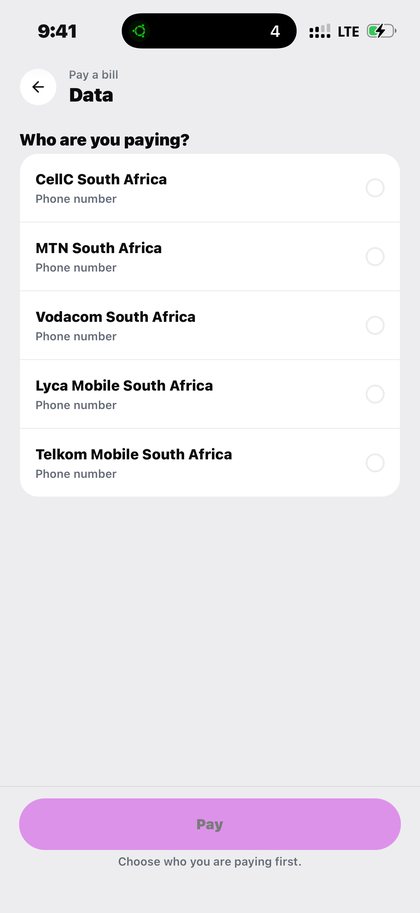
Open Mobile data. Home → country → Data → network → plan → Pay.
Confirm a mobile number on the review sheet. Pay is blocked if the balance cannot cover it.
Keep the receipt. History lists the bundle, validity and delivery state.
If status is Checking, do not retry. Read the receipt. Support is email and WhatsApp.
Check it worked
If mobile data is unavailable for Tunisia right now, the country page still lists what is available there, which is usually the faster answer than waiting.
Kpali sells mobile data for Tunisia as an in-app purchase against store credit — the only thing sold on this website is the store credit itself, by bank transfer.
Start from Download, create an account, fund with crypto, then open Mobile data for Tunisia.
Are you keeping a phone online back home? Data bundles, delivered straight to a phone number.
Access path: Home → country → Data → network → plan → Pay. The country picker is set to Tunisia (TN, calling +216).
Recipient for this product is a mobile number. Confirm it on the review sheet before Pay.
What decides this here
Tunisia sits in Africa. Coverage is catalogue-driven: a grey tile with a reason is honest unavailability, not a broken app.
Balance is checked before the rail is called. If store credit cannot cover mobile data in Tunisia, Pay does not proceed.
After a successful purchase you always get a receipt. History lists the bundle, validity and delivery state.
Currency on the country row is TND. Funding is crypto into USD store credit; the order path converts when the bill is not USD.
There is no Kpali admin link in this guide on purpose. Operators use a separate door. Customers use the app.
To send value into Tunisia from another country, fund your wallet — or put the recipient's email on the deposit screen so their store credit is credited instead of yours.
Quick OTP is a separate tile from bills. Do not type an OTP platform into the electricity form.
eSIMs bought for travel to or from Tunisia live under My eSIMs so usage is visible when you hold more than one pack.
Bills that are account-based look the name up first so the name on the screen is the name being paid in Tunisia.
Support is email and WhatsApp. The public WhatsApp is still the FirstFlip channel until the Kpali handle is updated.
Social profiles for Kpali are icons only in the footer, all @usekpali, including X.
Trustpilot reviews and Google Business Profile sit on /trust/ — this page exists to teach the product, not to scrape admin.
If Mobile data is unsupported in Tunisia today, the app still shows the category and the server sentence for why.
A definite refusal reverses the debit and says nothing has been charged. An unknown outcome stays on the receipt — do not retry.
Questions people actually have
How do I buy mobile data in Tunisia?
Download Kpali, fund store credit with crypto, set the country to Tunisia, open Mobile data, follow Home → country → Data → network → plan → Pay.
Can I pay from a computer?
Only for store credit: kpali.app/store-credit/ takes a naira bank transfer and loads credit that is spent in the app. The purchase itself happens on the phone.
What if the category is grey in Tunisia?
The server is saying it cannot sell that pair today, with a sentence. That is better than a silent missing tile.
How do I check the balance afterwards?
Home is the balance. History is the same events as receipts. eSIM usage is on My eSIMs.
Can I pay someone else's mobile data in Tunisia?
Yes when the recipient is a number or account you hold. Or fund their Kpali email on the deposit screen so they pay themselves.
Where are the social accounts?
Footer icons only, all @usekpali. WhatsApp still uses the FirstFlip channel until the handle is updated.
Networks reached in Tunisia
- Ooredoo Tunisia
- Orange Tunisia
- Tunisie Telecom Tunisia