 Kpali
KpaliGuide
History, status and expiry
Completed, on its way, failed, checking.
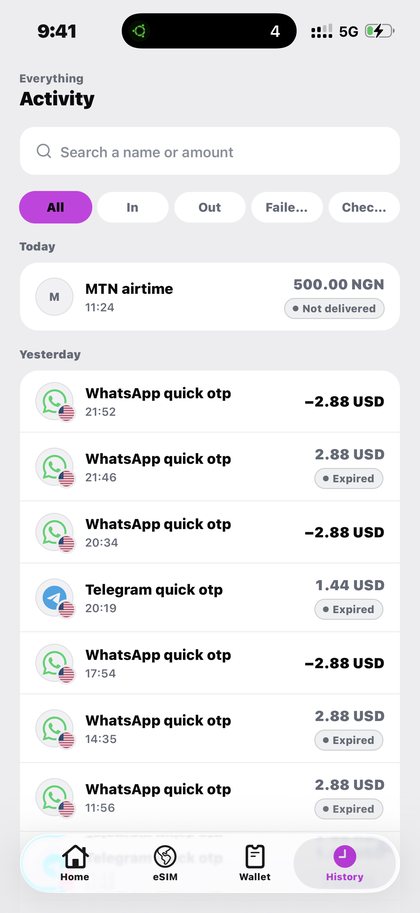
History is the same list of events as the preview on Home, with filters. It is where a purchase goes to stay explicable months later.
Step by step
- Open History. Everything is there by default.
- Filter by direction or state. In, Out, Failed and Checking narrow the list. Money added shows as In.
- Search by name or amount. Useful when you know roughly what you paid but not when.
- Open any row for its receipt. The row is the summary; the receipt is the record.
What to expect
The status words are chosen to follow money rather than mood. Completed means delivered. On its way means paid and moving. Failed means a definite refusal, with the debit reversed. Checking means the outcome is genuinely not known yet — and that is the one state where doing nothing is the correct action.
Expiry lives where the thing that expires lives: eSIM validity under My eSIMs, gift-card and token detail on the receipt, subscription periods on the receipt for the cycle they cover.
What goes wrong
- Reading Checking as Failed.
- Assuming an empty filter result means the purchase vanished — it usually means the filter excludes it.
Why this matters
History exists to answer questions asked long after the fact — whether a month was paid, which bundle was bought, what a charge from four months ago actually was.
That is why rows carry names rather than amounts alone. A row reading 500.00 is useless in April; a row naming the network, the number and the plan is not. The same principle governs expiry: an eSIM's validity lives with the eSIM, a subscription's period lives on the receipt for the cycle it covers, and a token lives on the receipt that produced it.
Nothing is deleted to keep the list tidy. Expired eSIM packs move to their own tab and stay. Old orders stay. A list that quietly drops what is no longer current would be easier to read and much less useful.
A practical consequence worth knowing: because nothing is ever deleted, History doubles as the record you need when somebody else asks a question about a payment — a bursar, a landlord, a relative who wants to know whether the light bill was settled in March. The row finds it, the receipt proves it, and neither of them was written to be marketing.
One more thing worth knowing about the filters: they narrow, they do not delete. If a purchase seems to have disappeared, clear the filters before assuming anything, because the most common cause of a missing row is a state filter left on from the last time you looked.
What you will see
These images come from the running app, which is the only version worth showing you. These are the screens this page refers to when it says history, status and expiry. Both the light and the dark theme appear, because the app follows your phone.
- A Kpali receipt showing an order paid and on its way (light theme)
- A Kpali receipt still checking with the provider, telling you not to retry (light theme)
- Kpali history listing every purchase with its status (light theme)
- Kpali history in dark mode filtered across all transactions (dark theme)
Questions
Is History the same as the list on Home?
Yes. Home shows a preview; History is the full list with filters.
Why is a purchase not in my filter?
The filter probably excludes its state. Clear the filters and search by name or amount instead.
Where do I see when an eSIM expires?
Under My eSIMs, per pack, because one traveller often holds several.
Does anything ever get deleted?
No. Expired packs and old orders stay listed so a past trip is still explicable.
Read next
- Read a receipt — the three states, and why one of them means do nothing
- Track eSIM usage — why every pack is tracked on its own row
- Check your balance — what the number on Home actually is, and what it is not
- Get support — the questions answered in full, and the path to a person
Guides here map to real screens in a real app. Goods are never sold on the web; store credit is, on one page, by transfer.
This guide describes the app. The one page here that takes payment is store credit by bank transfer; no page asks for a card.
History, status and expiry. Completed, on its way, failed, checking.
Kpali takes no card details on this website, ever. The one payment it takes is a naira bank transfer for store credit, on /store-credit/. A page asking for a card number for Kpali is not us.
Admin URLs are intentionally absent from navigation, sitemaps and robots allow-lists.
When Claude finishes the completeness wave, real device screenshots replace the token-built phone frames without changing the red circle targets.
Get the Kpali app when it is back on Google Play and the App Store; until then, a 'Kpali' app on any store is not ours.
Create an account. You do not need a local bank account to start.
Open Add money. Read the network warning above the address. Enter the amount. The minimum is stated before you copy.
Enter an email: yours to be notified, or theirs if this deposit should credit another person.
Send the crypto on the stated network. Wait until Home shows store credit. An address is not money.
Set the country to Algeria.
Open Airtime. Home → country → Airtime → network → number → amount → Pay.
Confirm a mobile number on the review sheet. Pay is blocked if the balance cannot cover it.
Keep the receipt. Receipt + History show the number, network, amount and status.
If status is Checking, do not retry. Read the receipt. Support is email and WhatsApp.